
Agents and Profiles
Install agent CLIs and create profiles for models, modes, flags, secrets, permissions, passthrough, and MCP.
An agent is Kandev's integration with a coding-agent CLI. A profile is its reusable launch configuration. Create separate profiles when model, credentials, or permissions need different trust boundaries.
Agent authentication is separate from repository and integration credentials.
Quick path
- Rescan or install the agent on the host running Kandev.
- Authenticate it as the same operating-system user.
- Create a profile and verify model, mode, permissions, environment, and executor compatibility.
- Use the advanced sections only when you need passthrough, MCP, or custom launch behavior.
Install or detect an agent
Open Settings > Agents (/settings/agents). Kandev scans the host on which its backend runs, not the browser computer.
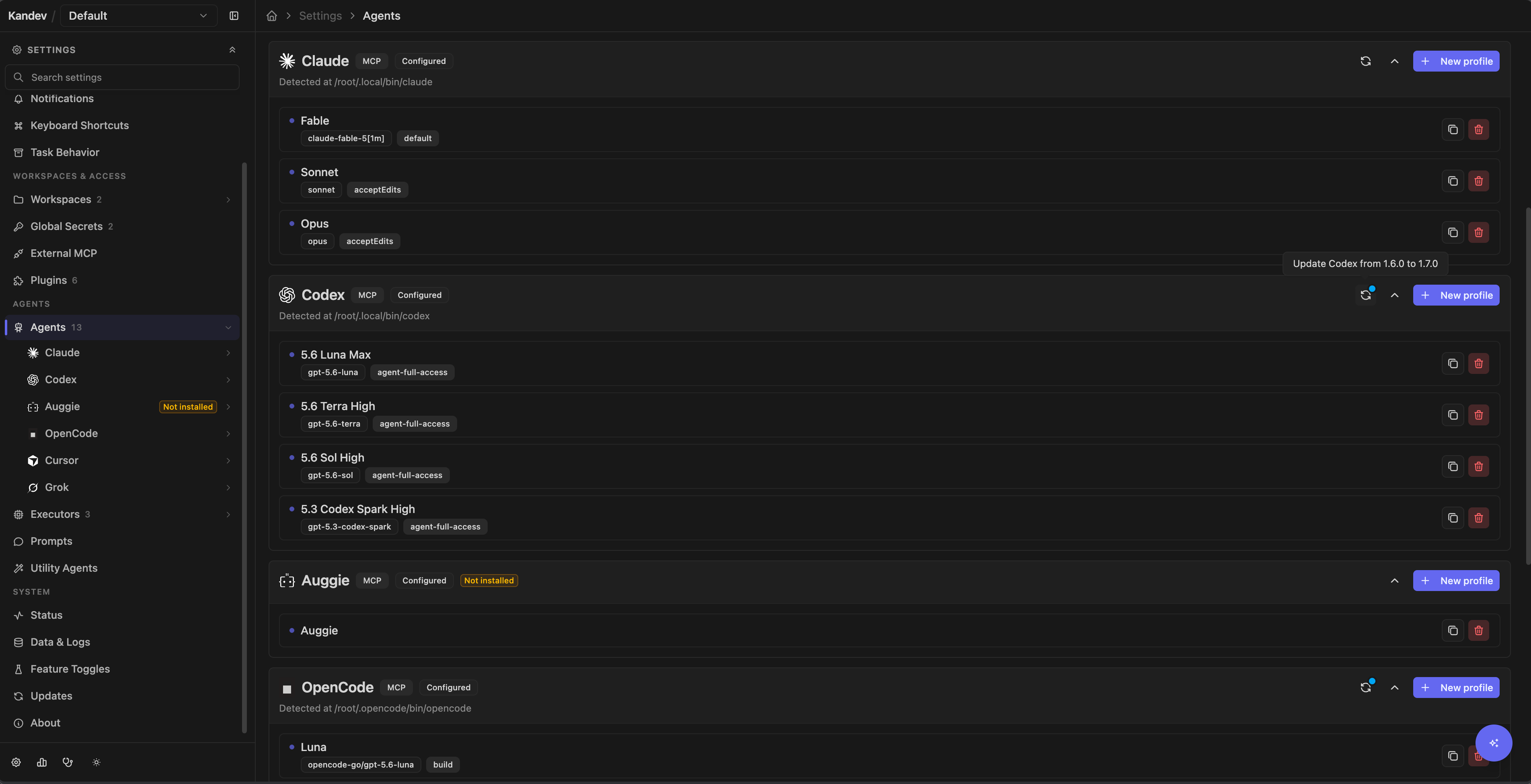
The production registry currently shows Auggie, Claude, Codex, Copilot, Gemini, OpenCode, Amp, Qwen, iFlow (beta), Droid, Kilocode, Pi, Cursor, Kimi, Kiro, Qoder, Trae, omp, Devin, Grok, and Hermes. An entry is usable only when its executable is supported on the current platform and available to the Kandev process. Development and E2E profiles can add mock agents that are not product integrations.
Hermes launches with hermes acp. Install the required hermes executable from its Settings > Agents card, which runs the official Hermes installer. Hermes currently supports task and workspace sessions. Office-assigned skill injection is not yet supported.
Pi command surfaces
Pi uses separate executables for its two Kandev modes:
- Structured ACP sessions and one-shot inference use
npx -y pi-acp. - CLI Passthrough starts the globally installed
piexecutable. - The Pi install action runs
npm install -g --ignore-scripts @earendil-works/pi-coding-agent.
After installation, select Rescan. Kandev detects Pi when pi is on the
PATH of the backend process and responds to the non-interactive --version
check. The pi-acp adapter is not the interactive terminal CLI, and managed
ACP runtime selection does not replace the passthrough command.
- Select Rescan after installing or updating a CLI.
- If the card offers an install action, review the command before running it. Installation runs on the Kandev host.
- If the card reports that login is required, open its login terminal or authenticate the CLI as the same operating-system user that runs Kandev.
- Open the seeded default profile and review it before selecting the agent in a workflow step or session. Discovery creates one default profile the first time it provisions an agent. If you deliberately delete every profile, later rescans do not recreate one; create a replacement manually.
The status shown on this page is authoritative for the current host. A CLI that works in your interactive shell can still be absent from Kandev when the service has a different PATH, home directory, or operating-system user.
Update a managed agent runtime
The update icon is available on managed Claude, Codex, OpenCode, Copilot, and Gemini agent cards. It updates the runtime on the Kandev host.
Each managed runtime has a reviewed Kandev default. If you have not selected a version, Kandev uses that exact default for probes, sessions, standalone inference, containers, and SSH commands. A successful version update stores your exact selection for this Kandev installation. The selection takes precedence over the default until you choose Use Kandev default. Kandev does not store the default as a user selection, so later Kandev releases can move unmodified installations to their reviewed defaults.
When the cached npm check finds a newer stable release, the update control has a blue dot and its accessible label includes the effective and latest versions. The dot is only a hint. Opening the control performs a fresh, authoritative preview before any update starts. If the check is unavailable, the control has no dot but remains usable.
- Select the update icon.
- Review the current version, active version, available stable versions, and command.
- Keep the latest version selected for a normal update, or select an older stable version to roll back.
- Select Update runtime, Roll back runtime, or Repair runtime.
- Wait for the exact version to prepare and pass its ACP capability probe.
Kandev enables the action only after the backend validates the selected version against the trusted package catalogue. It does not accept package names, npm tags, prereleases, registry URLs, or command text. When the active version, observed version, and target version match, the action is disabled as Up to date. A successful activation updates the advertised models, modes, configuration options, commands, and runtime version without a page reload.
- The active exact version survives Kandev and browser restarts.
- Later host-local probes, utility calls, and standalone sessions use the active exact version.
- Active sessions keep running. They are not restarted or hot-swapped.
- Passthrough agents and authentication helpers remain unchanged. The Settings update job prepares the host runtime only; remote executor and new-container commands still use the effective exact version and must resolve that package in their own environment. Running sessions and containers are unchanged.
- If preparation, ACP validation, authentication, or persistence fails, Kandev keeps the previous active version and capability catalogue. Select another stable version or retry the same target.
- Kandev may prepare the exact version again if npm removes its cache entry. Kandev does not own an offline package inventory, and global npm cache cleanup is not required.
Recover a stale npm runtime lookup
Host-local managed runtimes normally start with npm's offline-preferred lookup.
If npm has stale package metadata and cannot resolve the selected
package@version, the first ACP startup can fail even though the configured
registry contains that exact version. Kandev recognizes this specific npm
resolution error, removes only the deterministic _npx execution tree for the
selected package and version, then retries the same command once with an
online-preferred metadata lookup.
The same recovery applies to managed runtime startup on a local PC, in a local Docker executor, or in a remote SSH executor. Kandev sends the repair request to the agentctl process that owns the failed execution. That process resolves npm's cache with the agent environment and removes only the selected execution tree. It does not repair the Kandev host cache, delete sibling execution trees, change the registry, or clear the global npm cache.
The retry keeps the selected package, exact version, command prefix, model, permissions, and session identity. It does not change the npm registry or silently select another version. When the retry succeeds, no recovery card is shown. When it fails again, Kandev and Office show one Retry runtime action with collapsed technical details.
Do not use npm cache clean --force as the normal recovery step. It removes
unrelated npm data and does not target the stale execution tree. If the
specialized retry cannot resolve the runtime, check that the Kandev service
uses the expected npm installation and configured registry. Run npm config get registry as the Kandev service user to inspect the registry used by that process. Then use the runtime update controls to select and prepare another trusted stable version.
Add a custom terminal agent
Add a custom terminal agent
Use Settings > Agents > Add TUI Agent for a CLI that Kandev does not register. Enter a display name, command, and optional model label. {{model}} in the command is replaced by the selected model value, then the entire command is split on whitespace with Go's strings.Fields.
That parser is not a shell and is not quote-aware: quotes and backslashes do not preserve a path or model containing spaces as one argument. Custom TUI agents always use terminal passthrough. They do not gain ACP features such as structured permission prompts, model discovery, modes, or session configuration merely by being added. Test the exact resulting argument split before assigning it to work.
Create and configure a profile
Select an agent, create a profile, then open Settings > Agents > Agent > Profile. The page shows the resolved command preview and only the settings supported by that agent.
| Setting | Runtime behavior |
|---|---|
| Name | Label shown in workflow, session, and automation selectors. |
| Model | Requested through ACP when the agent supports model selection. Leaving it unset uses the agent's default where the form allows that. |
| Mode | Requested with ACP session/set_mode. The choices come from the installed agent. |
| Configuration options | Dynamic ACP values requested with session/set_config_option. |
| CLI flags | Enabled entries are tokenized and appended to the ACP launch command. |
| Command prefix | Optional ACP-only launcher argv prepended to the command, for example greywall --. |
| Environment | Literal values or references to Kandev secrets, resolved when the process starts. |
| CLI passthrough | Uses the CLI's native terminal interface instead of a structured ACP conversation. |
| Enabled | Keeps the profile available to existing sessions and settings while hiding it from new task, session, handoff, and Quick Chat selectors. |
| Auto-approve all permissions | Answers automatically: the first allow_once/allow_always option, otherwise the first option supplied by the agent; no options cancels. It is off by default. |
| MCP servers | Adds profile-specific external MCP servers when the agent supports MCP. |
Model, mode, command, and configuration choices are probed from the locally installed CLI and cached. The managed Update agent action refreshes them automatically; after other CLI changes, refresh the profile manually. Probe status can report auth required, not installed, not configured, or failed; a saved model name does not prove that the current provider account can use it.
Configuration options are resolved for the model selected in the profile. An agent can therefore show a different option set for each model. If a model change makes a saved option value unsupported, Kandev removes that value after a successful resolution; a failed resolution keeps the draft unchanged so you can retry it.
Use a dynamic profile
Choose the Dynamic agent family when you create a profile. Add concrete profiles in the order that Kandev must try them. The logical dynamic profile stays selected in the task and utility binding, while each launch uses one concrete candidate behind the scenes. Candidates must be enabled, launchable profiles. Dynamic profiles and rich Office profiles cannot be candidates.
Use the Dynamic agents card at the top of Settings > Agents to create and list dynamic profiles. The card is hidden, and dynamic profiles cannot be selected for new work, when dynamic routing is disabled. A new profile starts with its name and candidates; enable or disable it later from the profile editor.
Each candidate has a policy for two shared provider-error classes:
- Transient errors include capacity, overload, network, timeout, rate, and provider-availability failures.
- Hard errors include authentication, subscription, quota, credit, model, and provider-configuration failures.
For each class, configure exponential same-candidate retries, the maximum retry count, the initial interval, reset-date waiting with a maximum wait, and the final Skip candidate or Stop for manual recovery outcome. Kandev uses a trusted future reset date at most once for a candidate and class when it fits the configured maximum. It then applies the retry schedule and outcome. Unclassified, task, repository, permission, tool, and ambiguous mid-turn failures stop for manual recovery so Kandev does not repeat work. The error catalogue is versioned and can grow as provider signals become known; an ambiguous new signal fails closed. A future classifier may improve catalogue coverage, but no model is called to classify errors today.
After a provider switch, the failed provider is paused for the route health backoff, or until its trusted reset time when one is available. Kandev runs an exclusive health probe before it becomes eligible again. This shared error classification is used by task/Kanban and Office routing, while the per- candidate policies are configured on dynamic profiles.
Provider errors that occur before a result can use the configured action, such as retrying the current candidate or trying the next candidate. A started turn with an ambiguous result does not switch providers automatically. If no candidate is eligible, the session waits for a recovery action. After the current turn settles, use Retry current agent or Try next agent in the session recovery surface. These actions use the current route generation, so a stale browser action does not replace a newer route decision.
Host probes and executor model catalogs
The model list shown while editing a profile comes from a host probe. It is an editing hint, not a launch gate. A profile remains selectable when its saved model is missing from that host list.
At task launch, the selected executor's ACP catalog is authoritative. Kandev sends the requested model only when the executor advertises it. If it does not, Kandev uses an advertised fallback when available, or sends no model request and continues with the agent's current or default model. Kandev stores one warning in task chat with the requested model and the effective model when known. The warning also identifies the agent and executor and asks you to check credentials, copied configuration, and the agent version.
The saved profile model is not changed. Optional portable configuration can copy selected allowlisted files into a remote executor, but it cannot guarantee that the host and executor expose the same model catalog.
Monitor capability and subscription status
Use the profile refresh control after installing, authenticating, or upgrading an agent. A manual refresh updates both the advertised models, modes, and commands and the visible capability status, so an old failure banner does not remain authoritative after the local CLI recovers.
Office agent quota and provider usage
Monitor Office agent quota
When Office mode is enabled, open Office > Agents and select an Office agent to see its Subscription Quota on the overview; the Office dashboard also summarizes the highest utilization across subscription agents. These cards appear only for supported subscription agents with provider credentials.
For account-wide provider usage across supported providers, install the Provider Usage plugin. It adds a provider pill to the session top bar and can add a compact display to the global status surface. That surface is off by default and follows the portable Show status bar preference under Settings > Preferences > Appearance > Status Bar; saving applies without a restart. If it is off, the session top-bar pill remains available. When it is on, the plugin can also appear in the desktop/tablet bottom bar or phone Status drawer. Configure the plugin under Settings > Plugins > Provider Usage. These usage surfaces are operational signals, not a billing ledger or a guarantee that the next request will be accepted; provider availability, account policy, and concurrent usage still apply.
CLI flags and ACP command prefixes
CLI flags
Each flag entry has a raw value, description, enabled state, and an agent-specific default where applicable. Only enabled entries reach the process. Kandev tokenizes each raw value as command arguments: --add-dir /shared becomes two arguments.
The field is not a shell script. Pipes, redirects, variable expansion, and command substitution do not run as shell syntax. Empty or malformed quoting is rejected. Keep separate profiles for materially different permission or workspace flags, and recheck customized flags after upgrading the CLI.
Some older profiles contain compatibility fields such as Auggie's allow_indexing; current launch behavior is represented by the active profile settings and flags.
ACP command prefixes
Command prefix is available for ACP launches, not terminal-passthrough launches. Kandev parses the prefix into structured argv rather than running a shell: quote a path containing spaces, for example "/opt/launchers/safe wrapper" --. The resulting argv is prefixed to the agent command, so shell features such as pipes, redirects, variable expansion, and command substitution are not evaluated.
The prefix must contain a nonempty first argv element that is not flag-like. Malformed quotes, a trailing escape, an empty launcher, or a prefix beginning with - is rejected when you save or preview it. If an older persisted profile contains an invalid prefix, Kandev fails the launch rather than silently running the agent without its configured launcher. Check the command preview after changing a prefix.
Environment variables and secrets
Create reusable secrets at Settings > Secrets (/settings/general/secrets), then select a secret reference in a profile environment entry. Secret names are 1–100 characters and values are 1–10,000 characters. Editing a secret with a blank value keeps the saved value.
Kandev has two secret scopes:
- Global secrets are available to the current user across their workspaces. When authentication is disabled, Global is install-global.
- Workspace secrets belong to one workspace and can be selected by that workspace's repositories. They are not available to shared agent or executor profiles.
The General page manages Global secrets. Manage Workspace secrets from Settings > Workspaces > workspace > Secrets. Agent and executor profile selectors intentionally show Global secrets only; a Workspace reference saved through an older or direct API path is rejected when the profile is saved or launched.
Copy or move a secret between scopes from the Copy/Move action on any secret row. The dialog picks Copy or Move, chooses a destination (Global or another workspace), and lets you edit the target name; it is pre-filled as <name> (from Global) or <name> (from <workspace name>) so copied secrets keep their origin visible. Moving removes the original after the copy is safely in place, and the value is transferred server-side between encrypted rows. It is never shown or copied through the browser. A target name that already exists in the destination blocks the action until you rename it.
Kandev encrypts secret values at rest with AES-256-GCM. The encryption key is <KANDEV_HOME_DIR>/data/master.key (by default ~/.kandev/data/master.key) and is created with owner-only file permissions. KANDEV_DATABASE_PATH does not relocate this key. Protect and back it up with the Kandev database; losing it makes stored values unreadable. Anyone with access to the Secrets settings can reveal the plaintext.
Profile environment rules are:
- at most 100 entries;
- key length at most 256 characters and value length at most 8,192 characters;
- keys cannot contain
=or a NUL character, and values cannot contain NUL; - duplicate keys are rejected;
TASK_DESCRIPTIONand everyKANDEV_*key are reserved;- an entry must use either a literal value or a secret reference, never both.
Secret references are resolved at process launch. A deleted, missing, or unreadable secret causes that environment entry to be omitted; Kandev does not fall back to an old value. Empty resolved values are also omitted. Profile values fill missing environment keys but do not overwrite environment supplied by the executor or Kandev runtime.
Repositories can bind an environment key to a Global secret or to a Workspace secret from the same workspace under Settings > Workspaces > workspace > Repositories. A task inherits bindings from every attached repository. Repository bindings are secret references, never values, and a repository binding to a deleted or unreadable secret blocks that task's launch. If two sources provide the same key, Kandev deduplicates an identical secret reference and rejects every other collision; repository order never chooses a winner.
Literal values remain in profile configuration. A secret reference avoids copying a token there, but the selected agent and its child processes still receive the plaintext at runtime. Use narrowly scoped credentials, and keep read-only review profiles separate from profiles allowed to publish, merge, deploy, or administer external systems.
Permissions and unattended work
In a structured ACP session, the agent can present a permission request and its available responses. With Auto-approve all permissions disabled, a person chooses a response in the session. With it enabled, the runtime selects the first allow-once or allow-always response without waiting. If the agent supplies no allow response, Kandev selects its first response even when that response is not approval; with no responses, it cancels.
An external MCP client can also list live pending requests for an authorized task and submit one exact option originally offered by the agent. The request-generation ID prevents an old approval from targeting a replacement prompt that reused a provider pending ID. Kandev records who selected which option before delivery and rejects concurrent or replayed answers. It does not expose hidden environment values, headers, raw MCP arguments, or option metadata. See Resolve a live agent permission request.
Auto approval can authorize shell commands, file changes, network calls, or any other capability exposed by that agent. Agent-specific flags that suppress permission prompts can be broader still. Use either only with a constrained executor, repository, environment, and credential set.
Workspace automation selectors do not offer passthrough agent profiles. Local executor profiles are available for the repository-free target; Worktree requires a repository. Hidden automation sessions receive a fixed workspace-scoped coordinator MCP surface. Visible normal-task automations use the ordinary task profile and MCP surface. The trusted automation principal is resolved before hidden-run dispatch, and a hidden automation task and its sessions cannot be used as mutation, messaging, stopping, spawning, or blocker targets. Cross-task spawning uses the target task's normal profile. Native provider continuation and compaction remain authoritative for a healthy reusable session; Kandev's fallback resume prompt uses only the newest 50 non-empty user or assistant messages and excludes tool events. See Automation and MCP.
Structured ACP and terminal passthrough
ACP sessions can expose typed messages, tool updates, permission requests, models, modes, dynamic configuration, todos, usage, and resume metadata. Each capability depends on the agent's actual ACP implementation. ACP-only profile settings, including command prefixes and structured configuration, do not add those capabilities to a terminal-passthrough CLI.
Passthrough preserves the CLI's native PTY interface. It is useful when the native terminal has features that ACP does not expose, but Kandev cannot manufacture structured capabilities that are absent. Custom TUI profiles are locked to passthrough. Profile-specific MCP injection also varies by CLI; verify the command preview and the MCP section before depending on it.
MCP credential exposure: MCP headers and environment values are stored in profile configuration. Codex may place them in process arguments, and Cursor or Pi may leave them in project files after teardown. Use short-lived, narrowly scoped credentials and review persisted files.
Configure workspace MCP servers
Add MCP servers to a workspace
Open Settings > Workspaces > workspace > MCP servers. The Configured view stores reusable MCP definitions for that workspace. The existing External MCP page is different: it exposes Kandev's own MCP endpoint to outside clients.
Choose Add custom for one of these setup modes:
- Remote endpoint connects to an HTTP or SSE endpoint when an agent uses the definition.
- Managed npm package pins an exact package name and version. Kandev materializes it in a task executor's managed cache when an agent first uses it.
- Existing executable runs a command that must already exist in the task executor. Kandev does not install it.
Add non-secret settings and bind required values to workspace secrets. Saving a definition validates and stores it, but does not download, connect to, or start the server. MCP headers and environment values can reach the agent process, so use short-lived, narrowly scoped credentials.
The Marketplace view combines Kandev-curated templates with cached public Registry discovery. Registry metadata is publisher supplied and is not a Kandev security review. Review the publisher, transport, endpoint or exact package version, requested settings, and secret bindings before selecting Add. A marketplace action stores the reviewed workspace definition only; it does not install or start the server.
If public Registry discovery is unavailable, Kandev shows the most recent successful cache and marks it stale or degraded. Deprecated or deleted entries cannot be newly installed. Existing installed definitions remain available until you edit or disable them.
Select workspace MCP servers for agents
After a definition is configured, select it where it should apply:
- In an agent profile, choose the workspace context first when the profile is global. The selection applies only to that profile in that workspace.
- In repository settings, open the collapsed MCP servers section.
- In New Task, open Advanced and choose task-level additions.
- When starting another agent session, choose session-level additions.
Selections are additive. The effective set combines every selected repository, profile, task, and session definition, includes every repository attached to the task, and reports duplicate origins once. A lower scope cannot remove an inherited server. Changing a definition or selection does not alter an active turn.
For an existing task session, MCP changes save as a desired revision. Kandev applies them after the current turn is idle. A compatible ACP provider reconnects the same session; otherwise the UI says the change will apply on the next start. If reconnect fails, the previous applied selection remains active and the UI offers retry.
Existing legacy profile MCP JSON is imported into workspace definitions when possible. During migration, the legacy profile configuration remains the fallback for a profile-workspace pair that has not imported successfully. New persistent profile selections use the workspace catalog.
Delete profiles and custom agents
Deleting a profile is irreversible. Kandev checks references before deletion:
- active sessions and watcher references are soft conflicts; force bypasses the active-session check and soft-deletes the profile, while disabling affected watchers is best effort rather than guaranteed cleanup;
- enabled automations bound to the profile are disabled before it is deleted, and a failure to disable them aborts the deletion. Unlike watchers, an automation has no preflight that would notice a profile had vanished, so it would otherwise keep firing at a profile that no longer exists;
- feature-flagged Office routing-tier references are hard conflicts and cannot be forced;
- Kandev attempts to clean every ephemeral task with a session using the profile, including matching Quick Chat and Configuration Chat. A cleanup failure is logged and does not prevent profile deletion, so audit leftover resources afterward.
Only custom TUI agents can be deleted from the agent list. Built-in definitions remain registered even when their CLI is not installed.
Troubleshooting
- Agent unavailable after install: confirm the executable as Kandev's service user, select Rescan, and compare the service
PATHwith your shell. - Login required: use the agent card's login terminal or sign in under Kandev's operating-system user; signing in as another user does not help the service.
- Model, mode, or command probe fails: authenticate first, refresh discovery, and choose a value advertised by the installed version.
- Launch fails after editing flags: inspect the command preview, remove stale arguments, and correct unmatched quotes or trailing escapes.
- Managed npm runtime cannot resolve its selected version: Kandev checks the configured registry and retries the same version once after refreshing its exact
_npxexecution tree. If the retry fails, verify the service user's npm configuration and registry, then use Settings > Agents to prepare another trusted stable version. Do not start withnpm cache clean --force. - Environment value is absent: confirm the secret still exists, the key is not reserved, and an executor/runtime variable is not already taking precedence.
- MCP server is absent: confirm agent MCP support, valid JSON, transport mode, executor policy, and the session warning logs.
- MCP tools are missing from one agent session: open MCP servers in that
session's chat toolbar. Select
kandev, then find the tool in the scrollable list. Select the tool to inspect its description, token estimate, and arguments. Use Back to tools, then Back to servers on touch devices. Connected means the built-in server completed MCP initialize. Active means it servedtools/list. A gray row explains an intentional omission. Red identifies an explicit sanitized error. Delivered, connection unverified applies to a profile server that connects directly to the agent. Kandev cannot inspect that server's tools. Inspect the affected session because each report belongs to one session and execution. - Automation cannot select a profile: passthrough agent profiles and Local executor profiles are intentionally omitted from the automation selectors.
Related: Executors, Automation and MCP, and the contributor guide Adding a new agent CLI.